
Blogging late due to Windows Vista Hang @ Startup
I've had my laptop for 1 year and a half now and today, after realizing that the computer screen was frozen, I did what I usually do- a long press on the power button to reboot it.
And to add more to my disappointment, the damn thing didn't start up at all. But here I am now, grumbling and talking about it in my blog. So here were the steps I did that may or may not have helped in fixing it (It probably did help since I'm typing this now.)
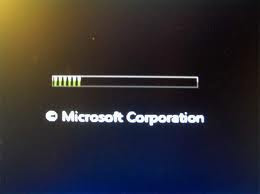 So firstly, I left it for an hour to just to that annoying loopy screen as seen above.
ATTEMPT 1:
DRAT, no luck. I shut it down again and decided to try again by PRESSING F8 TO LOAD THE WINDOWS BOOT MANAGER

PRESSED TAB TO SELECT WINDOWS MEMORY DIAGNOSTIC tool and ENTER. The screen below appeared and I waited for it to be done. After the laptop restarted, the loopy screen appeared again. I left it for 30 minutes this time again for any sign of life form before I shut down the lappy to try SAFE MODE this time (which I should've tried first)

Because although there was a great possibility that this was only an operating issue. Some symptoms such as a computer hanging or not being able to load into the OS for a very long time could be because of an about-to-be defective RAM.
It actually occured to me in one of the laptops I tried to fix that the computer was not properly copying files when I transferred them for back-up and sometimes would need to be repetitively booted before the desktop screen would finally appear.
I thought it was an OS system issue as I could still find the Hard Drive and the RAM detected in the BIOS and that reformatting and reinstalling the OS would fix it until I got stuck midway during the installation even after several attempts. Just to eventually realize that the issue wasn't the hard drive nor the OS, it was a defective RAM. We usually expect when it's a hardware problem, the PC don't usually boot or would sound a series of beeps or present a blue screen of death, so discovering that it had been a RAM issue was not what I expected.
ATTEMPT 2:
After seeing the Asus Screen Start-up, I PRESSED F8 again which brought me back to the WINDOWS BOOT MANAGER. PRESSING F8 once again brought me to the ADVANCED WINDOWS MENU (bottom screen)

I SELECTED SAFE MODE and bore with the bottom screen for an hour before I finally decided to press the power button again. No luck. It was taking forever.
 My phone camera sucks to death.
ATTEMPT 3:
I decided to use the REPAIR DISK OPTION found in my VISTA installer but I had doubts as my DVD-ROM no longer read disks. Luckily for me, last month I had bought a SAMSUNG EXTERNAL USB SLIM DVD WRITER.
Not all computer or laptops are set to consider USB drives (or REMOVABLE DRIVES) in their boot options so I had to PRESS ESC TO ENTER SETUP (some laptop would require the F2/F10 button or the DEL button to be pressed but mine was escape to enter SETUP)

 All hail the great 2MP ... No, 1.2MP phone camera...WITH FLASH!!!
In the BIOS screen, I tabbed my way to BOOT and under BOOT DEVICE PRIORITY selected REMOVABLE DRIVE as my primary boot, made sure I saved the changes and exited the BIOS SETUP.

I PRESSED THE SHUT DOWN BUTTON AGAIN, made sure my EXTERNAL DVD WRITER was SECURELY AFFIXED ON MY USB PORT and waited for this screen.

As commanded, I PRESSED A KEY and WAITED FOR VISTA'S INSTALL SCREEN TO APPEAR (WHICH TOOK ABOUT 15 MINUTES OR SO BUT APPEARED NONETHELESS)
 I CLICKED ON NEXT
 SELECTED REPAIR YOUR COMPUTER
 WENT TO STARTUP REPAIR
 WAITED FOR IT TO FINISH HOPING IT'D WORK THIS TIME AND....
 CLICKED ON FINISH. After restarting, the loopy screen appeared again but only for 5 minutes or so. I was relieved that I was able to see my desktop again. The first restart made the explorer.exe hang again but the second one is fine as I am currently finishing up this blog.
Read More
I've had my laptop for 1 year and a half now and today, after realizing that the computer screen was frozen, I did what I usually do- a long press on the power button to reboot it.
And to add more to my disappointment, the damn thing didn't start up at all. But here I am now, grumbling and talking about it in my blog. So here were the steps I did that may or may not have helped in fixing it (It probably did help since I'm typing this now.)
 So firstly, I left it for an hour to just to that annoying loopy screen as seen above.
ATTEMPT 1:
DRAT, no luck. I shut it down again and decided to try again by PRESSING F8 TO LOAD THE WINDOWS BOOT MANAGER

PRESSED TAB TO SELECT WINDOWS MEMORY DIAGNOSTIC tool and ENTER. The screen below appeared and I waited for it to be done. After the laptop restarted, the loopy screen appeared again. I left it for 30 minutes this time again for any sign of life form before I shut down the lappy to try SAFE MODE this time (which I should've tried first)

WHY CONSIDER DOING THE RAM TEST?
Because although there was a great possibility that this was only an operating issue. Some symptoms such as a computer hanging or not being able to load into the OS for a very long time could be because of an about-to-be defective RAM.
It actually occured to me in one of the laptops I tried to fix that the computer was not properly copying files when I transferred them for back-up and sometimes would need to be repetitively booted before the desktop screen would finally appear.
I thought it was an OS system issue as I could still find the Hard Drive and the RAM detected in the BIOS and that reformatting and reinstalling the OS would fix it until I got stuck midway during the installation even after several attempts. Just to eventually realize that the issue wasn't the hard drive nor the OS, it was a defective RAM. We usually expect when it's a hardware problem, the PC don't usually boot or would sound a series of beeps or present a blue screen of death, so discovering that it had been a RAM issue was not what I expected.
ATTEMPT 2:
After seeing the Asus Screen Start-up, I PRESSED F8 again which brought me back to the WINDOWS BOOT MANAGER. PRESSING F8 once again brought me to the ADVANCED WINDOWS MENU (bottom screen)

I SELECTED SAFE MODE and bore with the bottom screen for an hour before I finally decided to press the power button again. No luck. It was taking forever.
 My phone camera sucks to death.
ATTEMPT 3:
I decided to use the REPAIR DISK OPTION found in my VISTA installer but I had doubts as my DVD-ROM no longer read disks. Luckily for me, last month I had bought a SAMSUNG EXTERNAL USB SLIM DVD WRITER.
Not all computer or laptops are set to consider USB drives (or REMOVABLE DRIVES) in their boot options so I had to PRESS ESC TO ENTER SETUP (some laptop would require the F2/F10 button or the DEL button to be pressed but mine was escape to enter SETUP)

 All hail the great 2MP ... No, 1.2MP phone camera...WITH FLASH!!!
I PRESSED THE SHUT DOWN BUTTON AGAIN, made sure my EXTERNAL DVD WRITER was SECURELY AFFIXED ON MY USB PORT and waited for this screen.

As commanded, I PRESSED A KEY and WAITED FOR VISTA'S INSTALL SCREEN TO APPEAR (WHICH TOOK ABOUT 15 MINUTES OR SO BUT APPEARED NONETHELESS)
 I CLICKED ON NEXT
 SELECTED REPAIR YOUR COMPUTER
 WENT TO STARTUP REPAIR
 WAITED FOR IT TO FINISH HOPING IT'D WORK THIS TIME AND....
 CLICKED ON FINISH. After restarting, the loopy screen appeared again but only for 5 minutes or so. I was relieved that I was able to see my desktop again. The first restart made the explorer.exe hang again but the second one is fine as I am currently finishing up this blog.


